Category Ordering
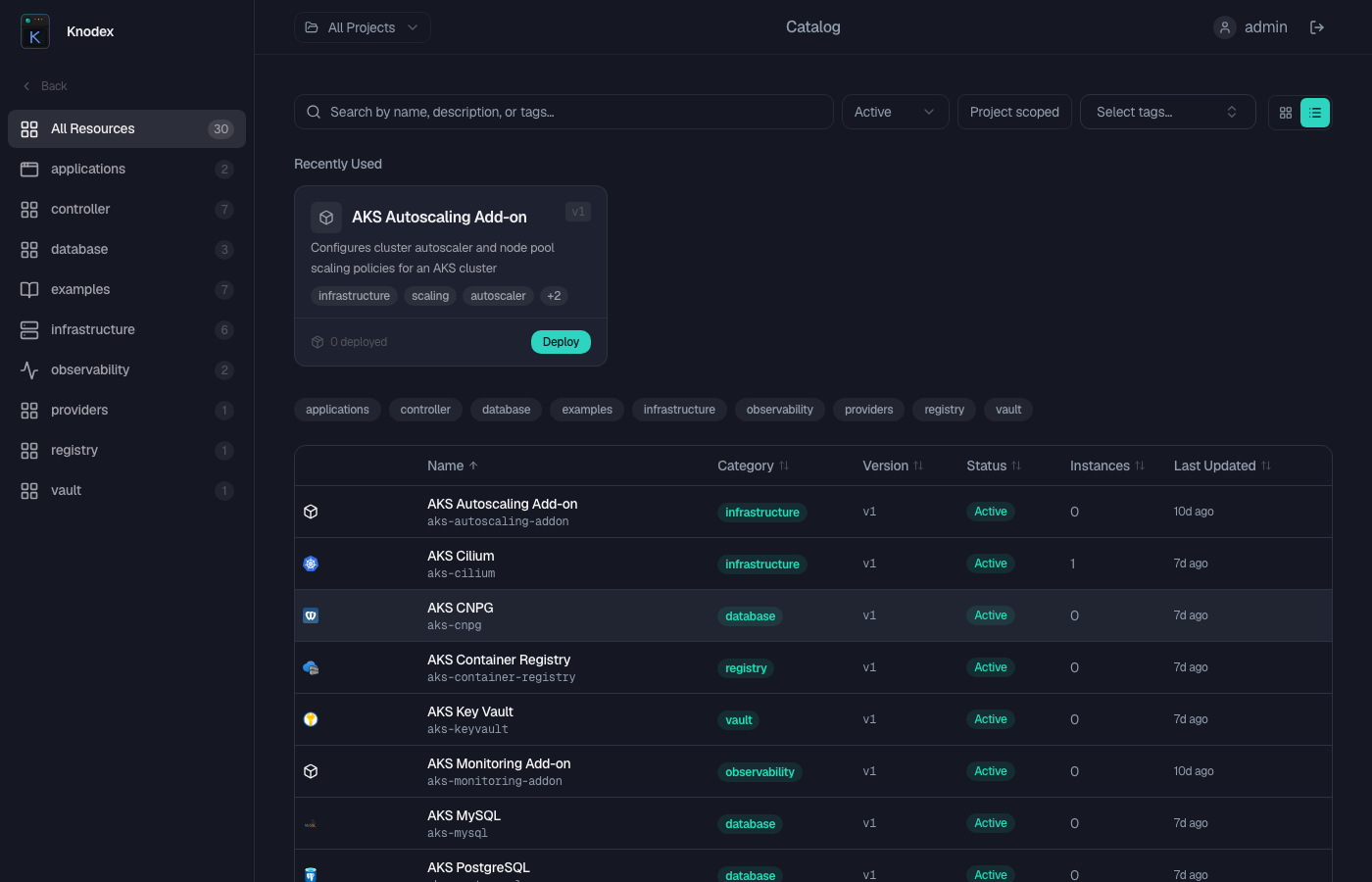
Knodex discovers category ordering, icon overrides, and visibility rules from Kubernetes ConfigMaps labeled knodex.io/category-config: "true". Multiple ConfigMaps can be active simultaneously; their entries are merged so that each package team can maintain its own config without touching a monolithic global one.
How It Works
At server startup, Knodex loads category config through three steps:
- Label-selector discovery — lists all ConfigMaps in the server namespace labeled
knodex.io/category-config: "true". - Package filtering — if
CATALOG_PACKAGE_FILTERis set, excludes ConfigMaps whoseknodex.io/packagelabel does not match (ConfigMaps without a package label are always included). - Merge — all active ConfigMaps are merged into one list. Weight conflicts use the minimum value; icon conflicts use the alphabetically-first ConfigMap name that provides a non-empty icon.
After merging, each category is filtered per-user through Casbin policies before appearing in the sidebar.
ConfigMaps are read at server startup. Changes require a server pod rollout to take effect.
ConfigMap Schema
apiVersion: v1
kind: ConfigMap
metadata:
  name: knodex-category-config
  namespace: knodex
  labels:
    knodex.io/category-config: "true"
data:
  categories: |
    - name: "Applications"
      weight: 10
    - name: "Databases"
      weight: 20
      icon: "database"
    - name: "Networking"
      weight: 30
      icon: "globe"
Fields
| Field | Type | Required | Description |
|---|---|---|---|
name | string | Yes | Category name. Matched case-insensitively against knodex.io/category annotations on RGDs. |
weight | integer | Yes | Sort order. Lower weights appear first. Equal weights sort alphabetically by name. |
icon | string | No | Lucide icon name override. Must match [a-z0-9-]+. |
Merge Rules
When the same category name appears in multiple active ConfigMaps:
- Weight — the minimum value across all active configs wins. This lets a package team promote its categories to a higher sidebar position without requiring the global config to change.
- Display name — taken from the entry with the lowest weight. On a tie, the alphabetically-first ConfigMap name's display name is kept.
- Icon — taken from the alphabetically-first ConfigMap name that provides a non-empty icon value.
knodex-category-config       Networking weight=30, icon=globe
knodex-category-config-net   Networking weight=5,  icon=network

→ merged: Networking weight=5 (minimum), icon=network (from knodex-category-config-net, alphabetically first with an icon)
Per-Package ConfigMaps
Add a knodex.io/package: <name> label to scope a ConfigMap to a specific package. It is only activated when CATALOG_PACKAGE_FILTER includes that package name.
apiVersion: v1
kind: ConfigMap
metadata:
  name: knodex-category-config-networking
  namespace: knodex
  labels:
    knodex.io/category-config: "true"
    knodex.io/package: networking
data:
  categories: |
    - name: Networking
      weight: 5
      icon: network
    - name: Security
      weight: 15
ConfigMaps without a knodex.io/package label are always included regardless of the filter setting (global scope).
See Catalog Package Filter for how to configure CATALOG_PACKAGE_FILTER.
Helm Configuration
Global config (catalog.categoryConfig)
Generates the knodex-category-config ConfigMap, always active:
catalog:
  categoryConfig:
    - name: Infrastructure
      weight: 10
      icon: server
    - name: Applications
      weight: 20
    - name: Networking
      weight: 30
      icon: network
Per-package configs (catalog.packageCategoryConfigs)
Generates one ConfigMap per key, scoped to its package:
catalog:
  packageCategoryConfigs:
    networking:
      - name: Networking
        weight: 5
        icon: network
      - name: Security
        weight: 15
    database:
      - name: Data
        weight: 20
        icon: database
Each key generates knodex-category-config-<key> with labels knodex.io/category-config: "true" and knodex.io/package: <key>.
Backward Compatibility
If knodex-category-config exists without the knodex.io/category-config: "true" label (pre-0.6 install), the server still loads it via a named Get as a global config. After a Helm upgrade to 0.6+, the ConfigMap gains the label and is discovered via the label selector; the named fallback detects this and skips the duplicate load.
Ordering by Weight
Lower weights appear first. Equal weights sort alphabetically by name.
# Sidebar order: Applications (10), Databases (20), Networking (30)
- name: "Networking"
  weight: 30
- name: "Applications"
  weight: 10
- name: "Databases"
  weight: 20
Use increments of 10 to leave room for inserting new categories without renumbering.
Icon Overrides
Icons are resolved in this order:
- ConfigMap
iconfield — if the merged ConfigMap entry specifies an icon (and it is a valid Lucide icon name), it is used - Custom icon registry — if a custom icon ConfigMap provides an SVG for the category slug, the SVG is used
- Default — falls back to
layout-grid
Casbin Filtering
After ConfigMap filtering and merging, each category is checked against the user's Casbin policies:
- ConfigMap gate — the category must appear in the active merged config to be visible at all
- Casbin gate — the user must have
rgds/{category-slug}/*permission withgetaction
A user with rgds/databases/* permission but no rgds/networking/* permission sees only Databases, even if both are in the merged config.
Hidden Categories
To hide a category, omit it from all active ConfigMaps. RGDs with that category remain accessible via the API and direct URL.
Deployment
The ConfigMaps must be deployed to the same namespace as the Knodex server (the Helm release namespace, typically knodex).
kubectl apply -f category-config.yaml -n knodex
kubectl rollout restart deployment knodex -n knodex
ServiceAccount Permissions
The server's ServiceAccount needs get and list on ConfigMaps in its namespace. The Helm chart's default ClusterRole includes both. If you manage RBAC manually, ensure both verbs are granted.
Behavior Reference
| Scenario | Result |
|---|---|
| Category in merged config, RGDs exist, user has Casbin access | Visible in sidebar |
| Category in merged config, no matching RGDs | Not shown |
| Category NOT in any active ConfigMap | Hidden from sidebar |
| Category in merged config, user lacks Casbin access | Hidden for that user |
| No active ConfigMaps | Empty sidebar |
ConfigMap present but categories key missing or empty | Logged as warning; ConfigMap skipped |
| Same category in two ConfigMaps, different weights | Minimum weight used |
| Same category in two ConfigMaps, different icons | Icon from alphabetically-first ConfigMap name with non-empty icon |
| Package-scoped ConfigMap, filter not set | Included (all packages active when no filter) |
| Package-scoped ConfigMap, filter set to different package | Excluded |