Browsing the Catalog
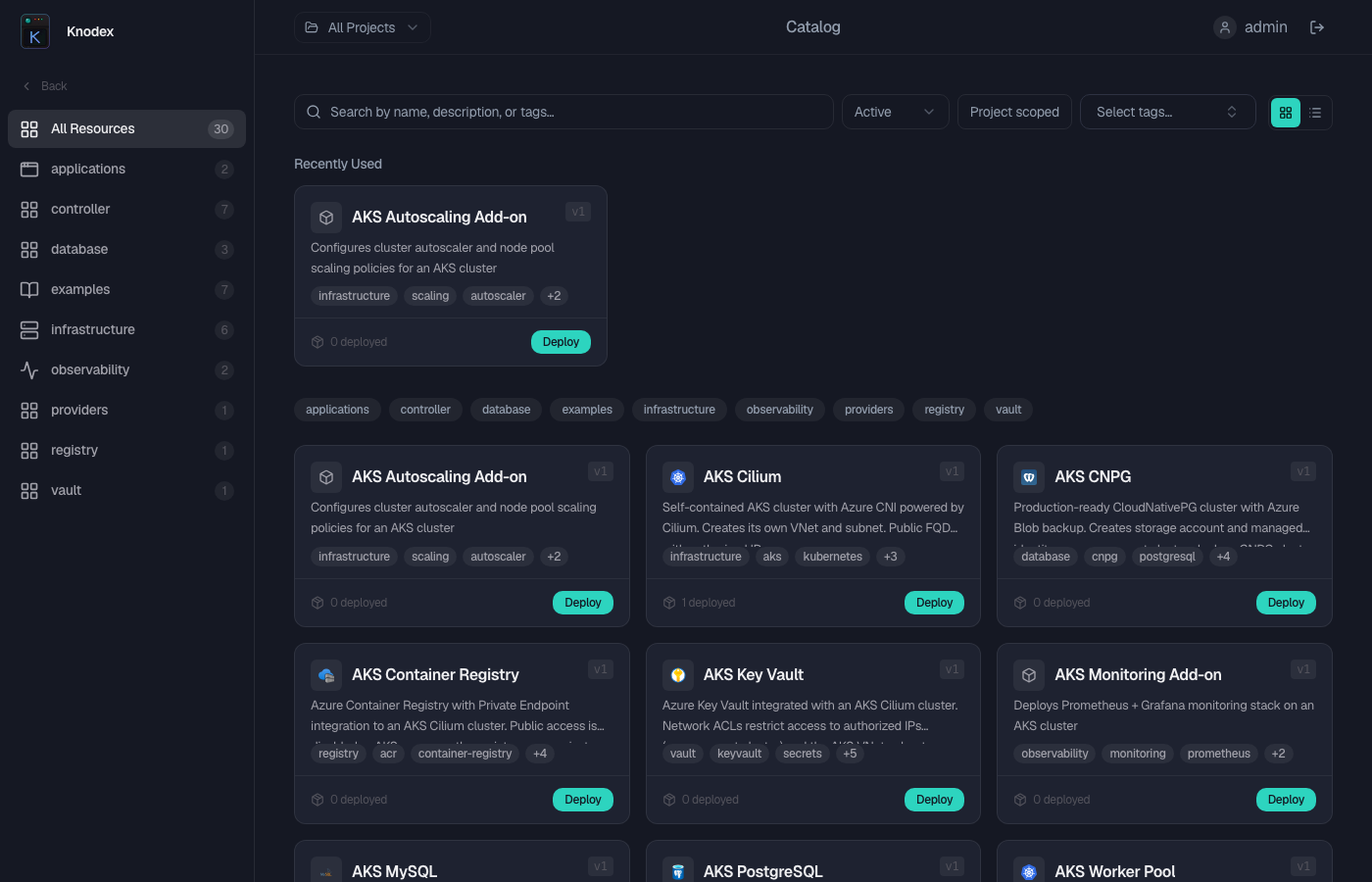
The catalog is the central hub for discovering ResourceGraphDefinitions (RGDs) available in your projects. It provides search, filtering, and detailed views to help you find and understand the resources you can deploy.
Accessing the Catalog
There are two ways to reach the catalog:
- Sidebar navigation -- Click Catalog in the main sidebar to see all RGDs across your projects.
- Category sidebar -- If categories are configured, expand the Categories section in the sidebar to browse RGDs grouped by category.
Catalog visibility is driven by Casbin RBAC policies. You only see RGDs belonging to projects where you have at least a viewer role.
Catalog Views
Card View
The default view displays each RGD as a card. Each card shows key information at a glance:
| Element | Description |
|---|---|
| Icon | Brand or category icon for the RGD |
| Title | The RGD display name (falls back to metadata name if no title is set) |
| Description | Short summary from the RGD metadata |
| Version badge | Schema version (e.g., V1) |
| Category badge | The category this RGD belongs to, if assigned |
| Tags | Tags applied to the RGD for filtering |
| Instance count | Number of deployed instances from this RGD |
| Deploy button | Quick deploy action directly from the card |
List View
Switch to list view using the toggle in the top-right corner of the catalog page. List view provides a compact table format that is useful when browsing a large number of RGDs.
Searching
Use the search bar at the top of the catalog to find RGDs by name, description, or tags. Type any text to filter the catalog in real time.
Filter Panel
The filter panel on the left side of the catalog allows you to narrow results by multiple criteria:
- Search text -- Free-text search across RGD names, descriptions, and tags
- Tags -- Filter by one or more tags applied to the RGDs
- Category -- Filter by category to see only RGDs in a specific category
- Project-scoped toggle -- Toggle to show only RGDs from your current project
Combining Filters
Filters use AND logic when combining across categories. For example, selecting a tag and a category shows only RGDs that match both criteria. Within the same filter category, multiple selections use OR logic.
Viewing RGD Details
Click on any RGD card or list item to open the detail view. The detail page contains several tabs:
Overview Tab
Shows RGD details including Name, Status, Category, Version, API Version, Kind, Scope, Extends (parent RGD links), Depends On, and Created/Updated timestamps.
Resources Tab
Shows the Kubernetes resources defined by this RGD, including their types and relationships.
Secrets Tab
Shows the secrets required by this RGD. This tab only appears when the RGD declares secret requirements. Each secret entry includes a type badge indicating the secret type:
| Type | Description |
|---|---|
user-provided | Must be created by the deployer before deployment |
fixed | Has a predetermined name; created by the platform team |
dynamic | Generated automatically during deployment |
Depends On Tab
Shows other RGDs that this RGD depends on. This tab only appears when the RGD has declared dependencies.
Add-ons Tab
Lists RGDs that can be deployed as add-ons to this resource. A count badge on the tab label indicates how many add-ons are available. Add-ons use an externalRef to reference the parent instance. This tab only appears when add-ons are available.
Revisions Tab
Shows the revision history for the RGD, allowing you to compare changes between versions. This tab appears when there are multiple revisions of the RGD.
Understanding Parameters
When reviewing an RGD schema, pay attention to these characteristics:
- Required vs Optional -- Required parameters are marked and must be provided during deployment. Optional parameters have default values.
- Types -- Parameters have explicit types such as
string,integer,boolean, orobject. - Constraints -- Parameters may have validation rules like minimum/maximum values, regex patterns, or enumerated allowed values.
Comparing RGDs
To compare two RGDs side by side, open one RGD detail view and use the Compare action to select a second RGD. The comparison view highlights differences in schema, parameters, and metadata.
Bookmarking Favorites
Click the bookmark icon on any RGD card to save it as a favorite. Favorites appear at the top of the catalog for quick access.
RGD Sources
RGDs can originate from different sources:
| Source | Description |
|---|---|
| Organization | Defined by your organization's platform team |
| Shared | Available across multiple projects |
| Repository | Synced from a connected Git repository |
Tips
- Recent RGDs -- The catalog remembers your recently viewed RGDs for quick access.